
System Junk
Clear system junk
Find caches, logs and developer leftovers, see each category with its size, and clean only the ones you tick. Safe items start selected; backups and installers stay off until you choose them.
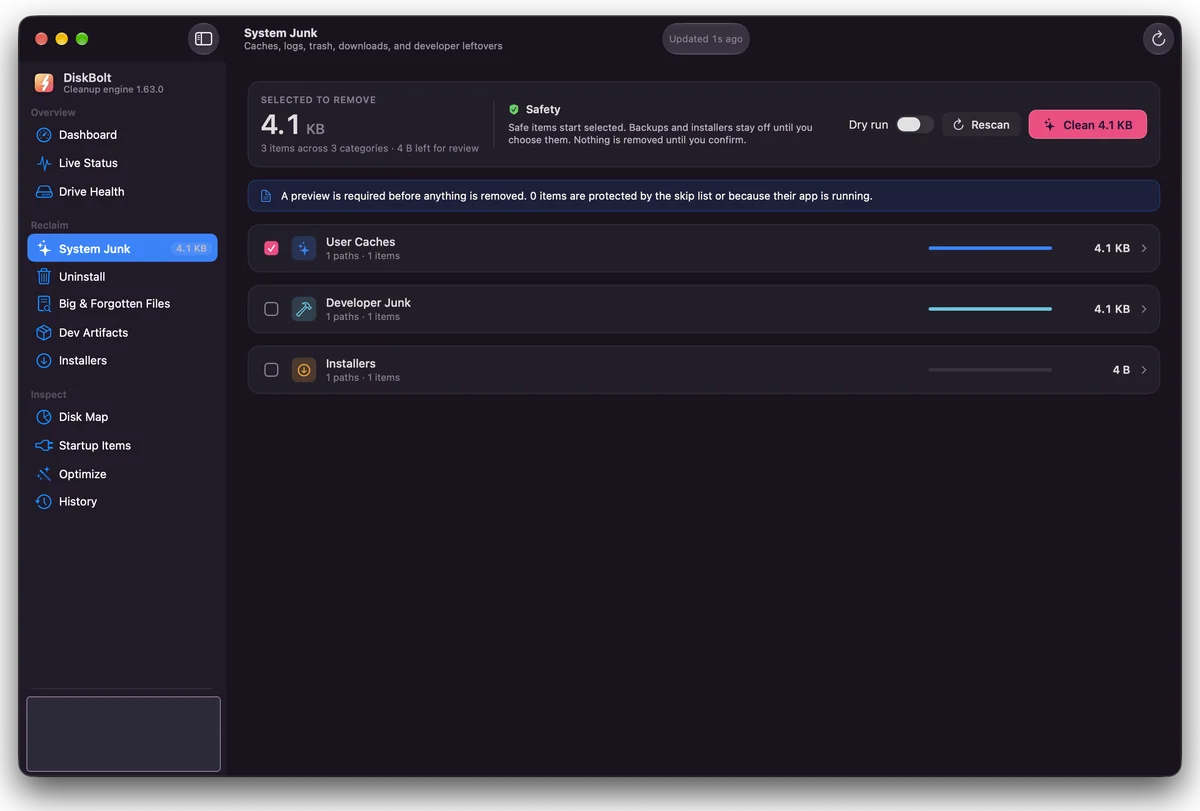
Each screen does one job and ends in the same place: a review panel, a confirmation, and the Trash. Everything below is in the current tester build.
Find caches, logs and developer leftovers, see each category with its size, and clean only the ones you tick. Safe items start selected; backups and installers stay off until you choose them.
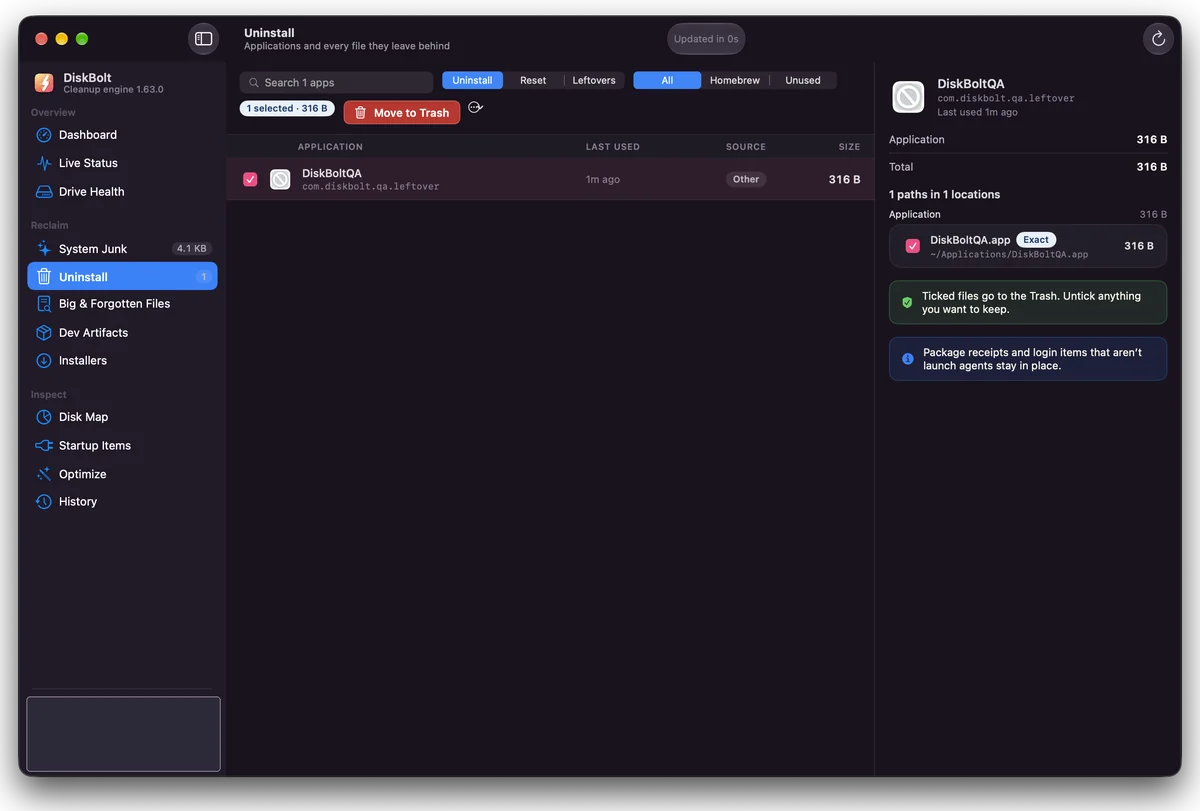
Pick an app and see every file that belongs to it before anything moves. Untick anything you want to keep.
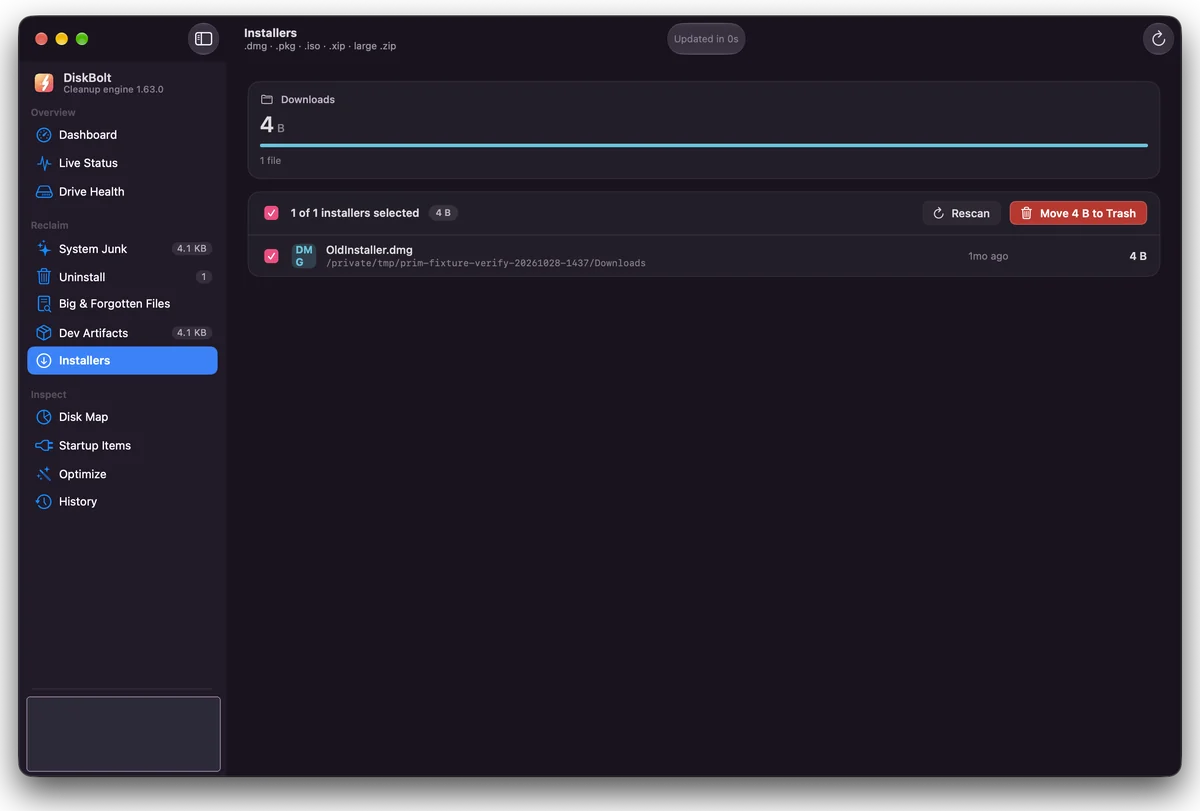
Find disk images and installers left in Downloads after you installed the app.
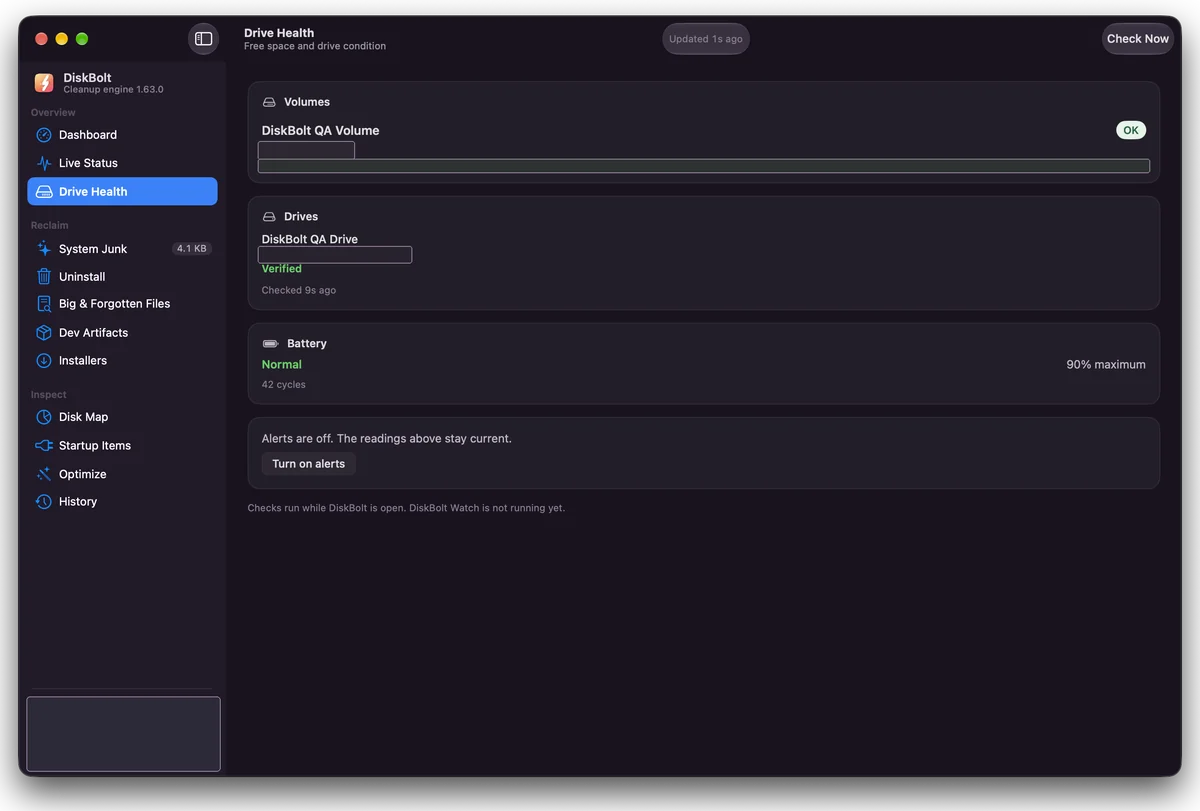
See volume status, drive verification and battery condition in one place.
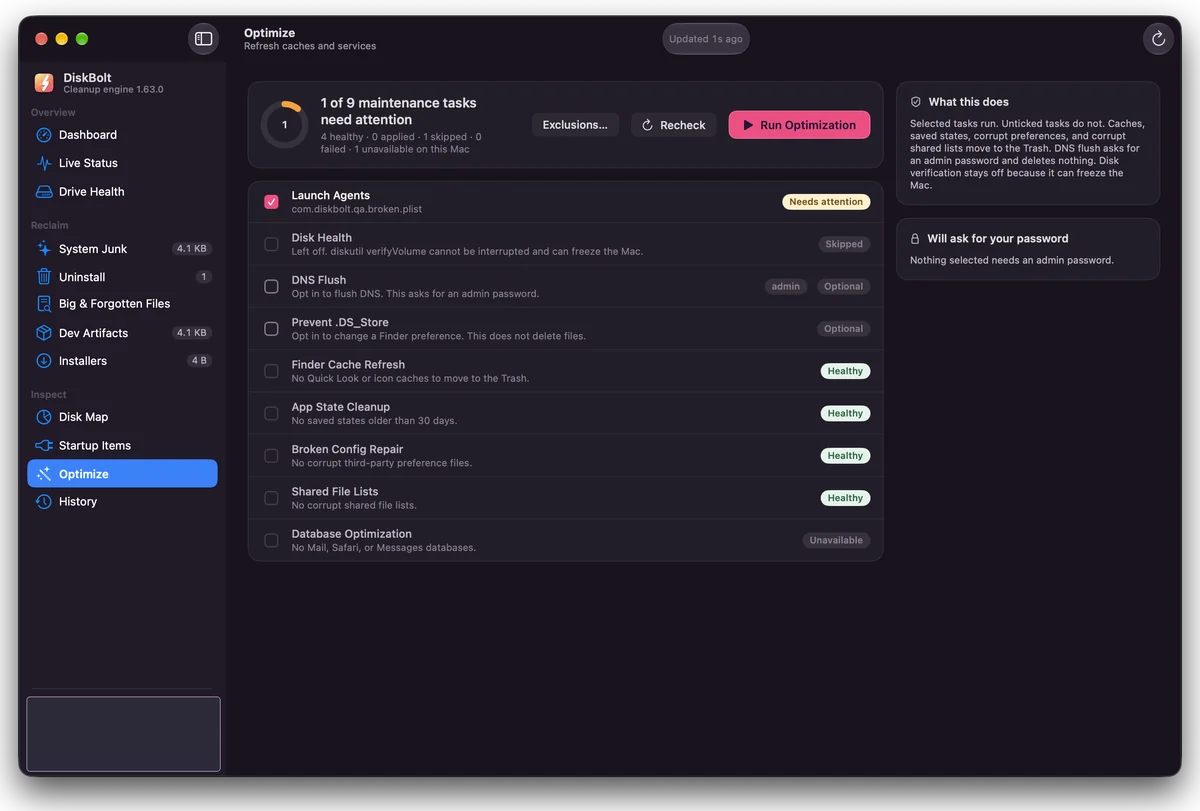
See which maintenance tasks need attention, what each one does, and which ones will ask for your password.
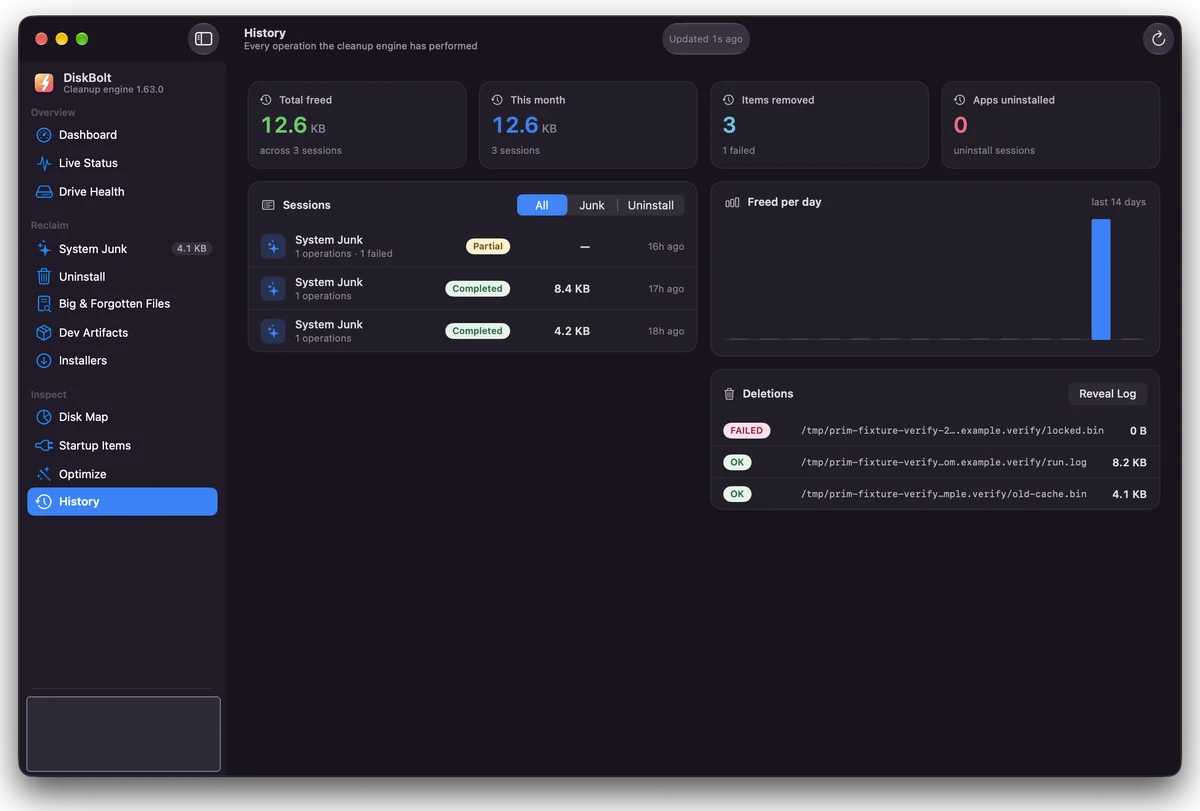
See past cleanup sessions, how much each freed, and every file moved, including any that failed.
Filter your Home folder or a chosen location by size, last-opened age and kind, and spot files you no longer need.
Find build folders such as node_modules in your projects and move the ones you are done with to the Trash.
Explore a folder or the whole disk as a treemap with a contents list and the largest files.
See login items, background helpers and launch agents, turn them off with a confirmation, and undo the change.
These are designed but are not in the tester build. They are listed so you know what is coming, not as features you can use today.
DiskBolt is in pre-release. The current tester build is ad hoc signed and not notarised, so macOS warns you the first time you open it.