Disk cleanup for macOS
Find the clutter.
Keep the choice.
DiskBolt finds caches, leftover app files, old installers and developer clutter. You see every item first, and only what you confirm moves to the Trash.
DiskBolt is in pre-release. The current tester build is ad hoc signed and not notarised, so macOS warns you the first time you open it.
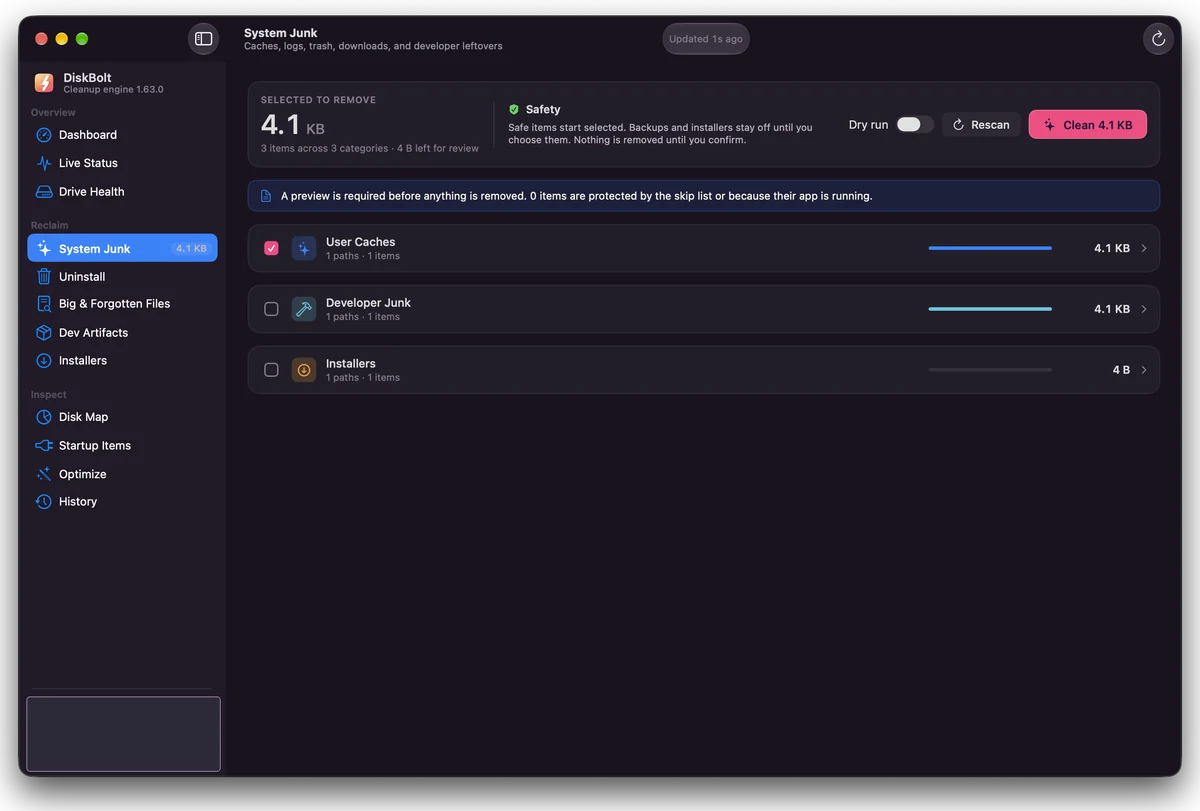
System junk
User caches and logs
App leftovers
Files apps leave behind
Old installers
Disk images left in Downloads
Developer clutter
Build folders and developer leftovers
Built on trust
Only you decide what goes.
Cleaner apps earn distrust when they delete first and explain later. DiskBolt works the other way round.
- 01
Nothing goes without your yes
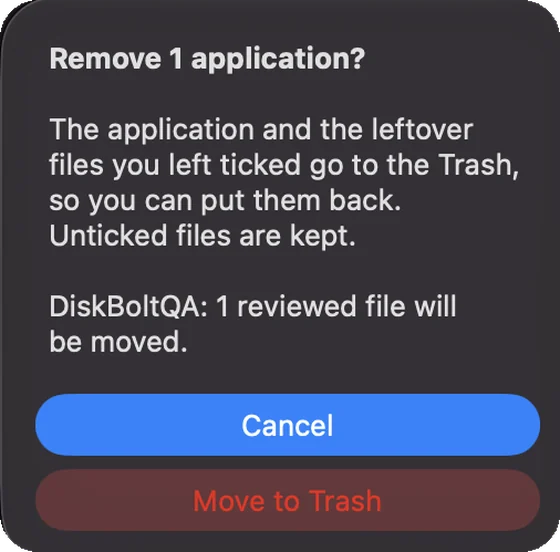
DiskBolt asks you to confirm before anything is removed, and the question names how many items will move.
- 02
The Trash, not a shredder
Items move to the macOS Trash, so you can put them back. The one exception, Xcode simulator runtimes, is flagged and asked about first.
- 03
Undo is right there
A 10 second Undo appears after each move, and Command-Z undoes the last move for the rest of the session.
- 04
Done means done
DiskBolt reports a cleanup only after macOS confirms the move to the Trash, never before.
Uninstaller
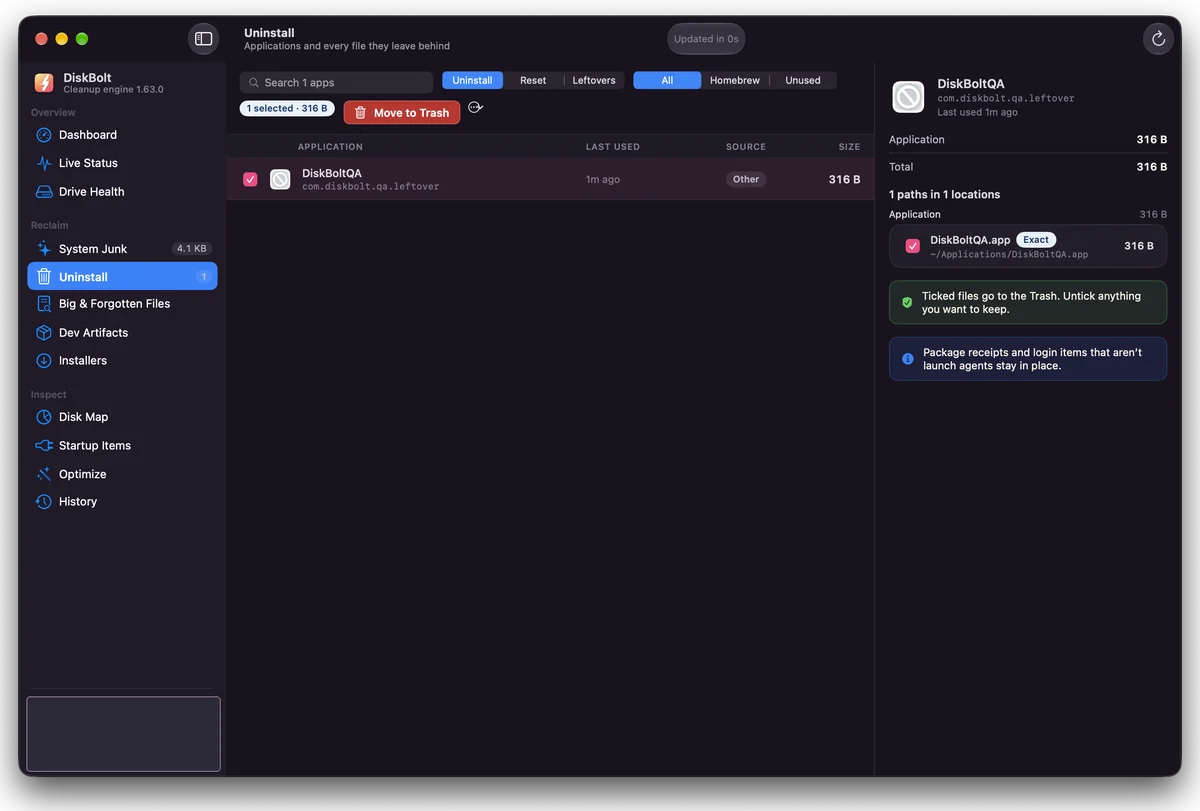
Remove an app. See every file it leaves.
Tick the app
The count and size of your selection sit next to the Move to Trash button.
Check the review panel
Every file that belongs to the app is listed with its path and size. Untick anything you want to keep.
Confirm
Ticked files go to the Trash. Cancel is the default button.
Privacy
Full Disk Access, on your terms.
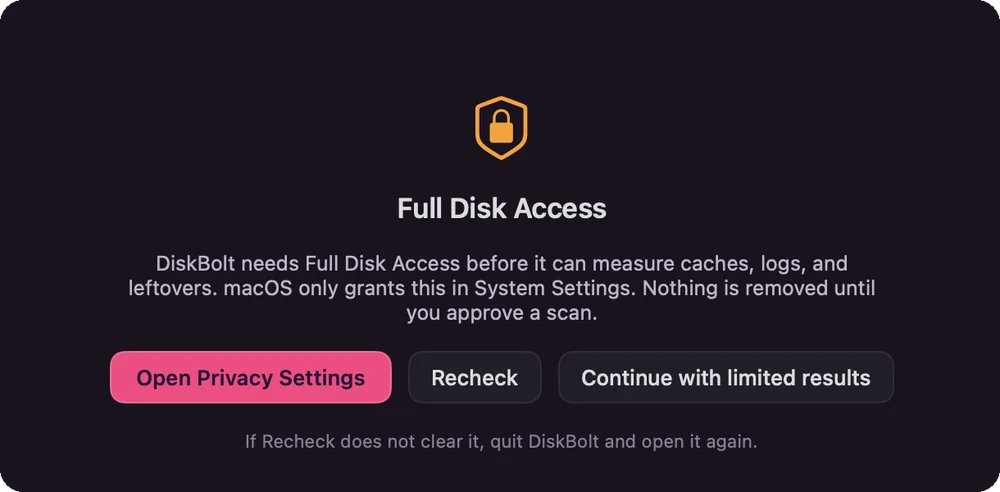
macOS keeps some folders private, including places where caches, logs and app leftovers live. DiskBolt needs Full Disk Access to measure them. You grant it yourself in System Settings > Privacy & Security, and you can switch it off there at any time. Prefer not to? Choose Continue with limited results.
- Nothing removed until you approve
- You grant it yourself in System Settings
- Switch it off whenever you like
Questions, answered
Is DiskBolt safe?
DiskBolt is built so that nothing is removed until you confirm it. Items you choose are moved to the macOS Trash, so you can put them back, and DiskBolt reports a cleanup as done only after the move to the Trash is confirmed. A preview is required before anything is removed, and backups and installers stay unticked until you choose them. One exception: deleting Xcode simulator runtimes cannot go to the Trash, and DiskBolt asks before doing it.
Can I undo a cleanup?
Yes. After a move to the Trash, DiskBolt offers Undo for 10 seconds, and the timer pauses while you hover over it. You can also press Command-Z to undo the last move for the rest of the session. Because items are in the Trash, you can also restore them from the Trash yourself.
Why does DiskBolt ask for Full Disk Access?
macOS protects some folders, including places where caches, logs and app leftovers live. DiskBolt needs Full Disk Access to measure those folders. Only you can grant it, in System Settings > Privacy & Security > Full Disk Access. DiskBolt does not remove anything until you approve a scan and confirm what goes.
How much does DiskBolt cost?
DiskBolt is pay what you want, from US$8. You choose the amount and the minimum is US$8. Checkout is not open yet while DiskBolt is in pre-release.
Reclaim your disk.
Keep your peace of mind.
Pay what you want, from US$8. You choose the amount, and the minimum is US$8. Checkout opens when DiskBolt is released.